Caddy: The Web Server for the Modern Age
In a world where manual SSL renewals and complex configuration files steal hours of your life, Caddy is the breath of fresh air you didn’t know you needed. It is an open-source, enterprise-ready web server with automatic HTTPS by default.
In this guide i will show you how to use caddy as a reverse proxy for your web apllication. Caddy is a powerful HTTP/2 server, that enables HTTPS by default with automatically generated Let’s Encrypt certificates, which allows a simple configuration procces.
Using caddy as a proxy server will allow you to access remotelly any of your web service app, without the need to open additional ports on your router. Certificates will be generated automatically for the added services
In this guide will use a domain called tmnasddns.duckdns.org and we want to access FileBrowser Quantum remotelly using the web link https://filebrowser.tmnasddns.duckdns.org
NAS_IP where Caddy and FileBrowser Quantulm are running, in this example is 192.168.25.227
Download and install Caddy app.
Download and install FileBrowser Quantum app
If you already have a DDNS domain , proceed to Step 3.
Get a domain name forwarded to your external IP address. You can use this guide to create duckdns.org domain: How to Setup DDNS(duckdns) on TOS6
The guide will explain also how to configure the DDNS service on your TOS6 (TOS7 is the same process). Whenever your external IP will change if you have a dynamic IP address from your server provider, the new IP will be linked to your duckdns.org domain.
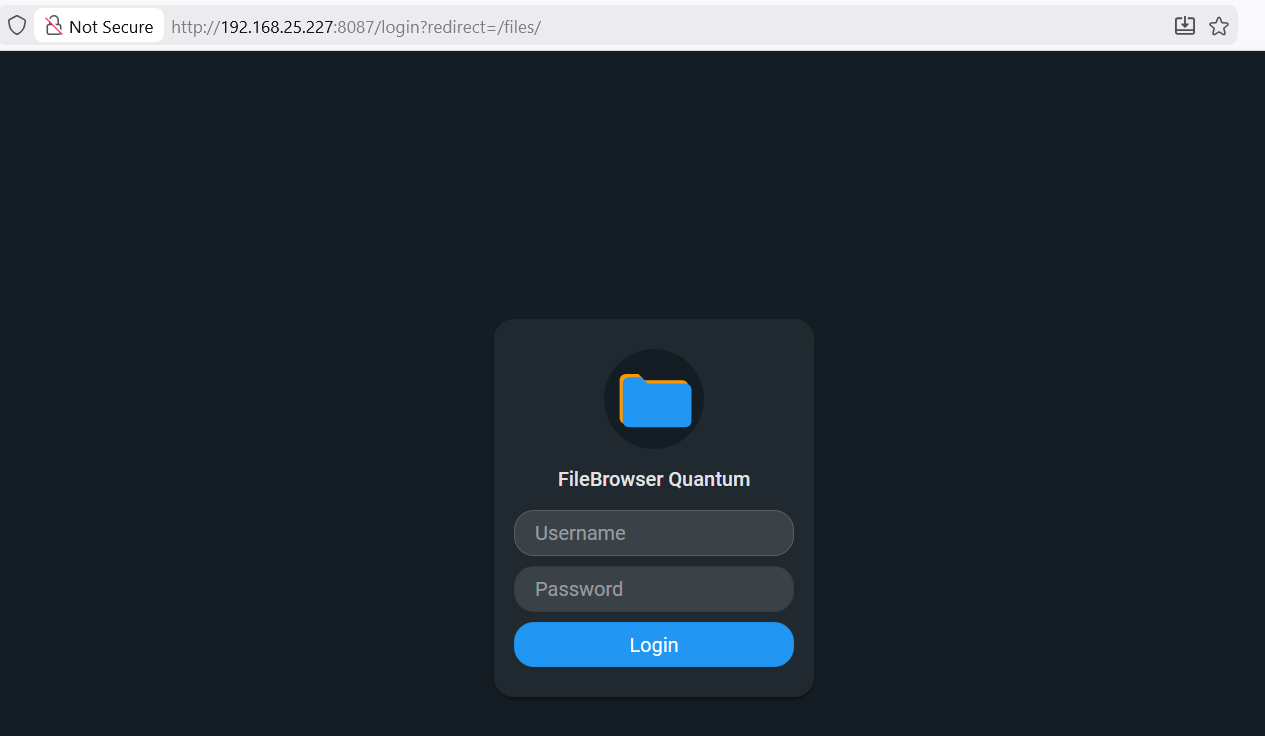
We consider that both Caddy and Filebrowser apps are installed and running correctly, and FileBrowser can be accessed within local network using the link http://192.168.25.227:8087
Caddy is running on the NAS using port 8010 for http and 6443 for https.
To be able to create Let's encrypt certificates, Caddy needs to be accessible from WAN (public) on ports 80 for http and 443 for https. On our NAS, these ports are used by TOS. There is an option in TOS to release these ports for other apps, but in this case the TOS functionality is affected. As example, we have to type the port number after IP address to access TOS WEB interface.
I want to avoid this, and in this case we have to forward on the router the ports 80 and 443 to Caddy ports.
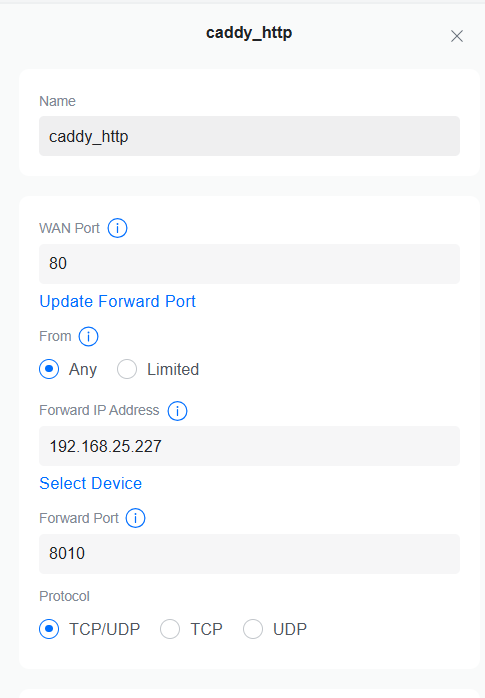
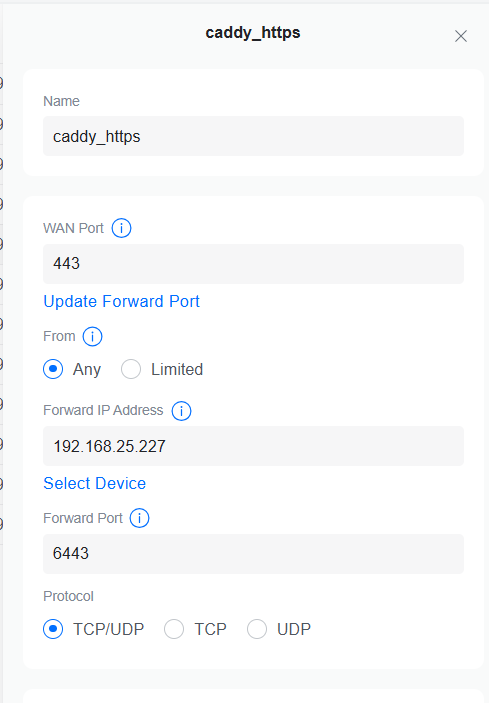
You need to create 2 rules on the port forward section of your router:
| Rule name | WAN port | Internal Port | NAS IP |
| caddy_http | 80 | 8010 | 192.168.25.227 |
| caddy_https | 443 | 6443 | 192.168.25.227 |
Here how these port firward rules are configured on my router:
To test if the port forwarding is working correctly, access now Caddy using your domain domain address http://tmnasddns.duckdns.org . If you did not adapt yet the Caddy config file, you should get the answer Hello, world!

Now we need to configure Caddy to act as a reverse proxy and redirect https://filebrowser.tmnasddns.duckdns.org to our internal FileBrowser running at http://192.168.25.227:8087
Open Caddy app and go to Edit Caddyfile
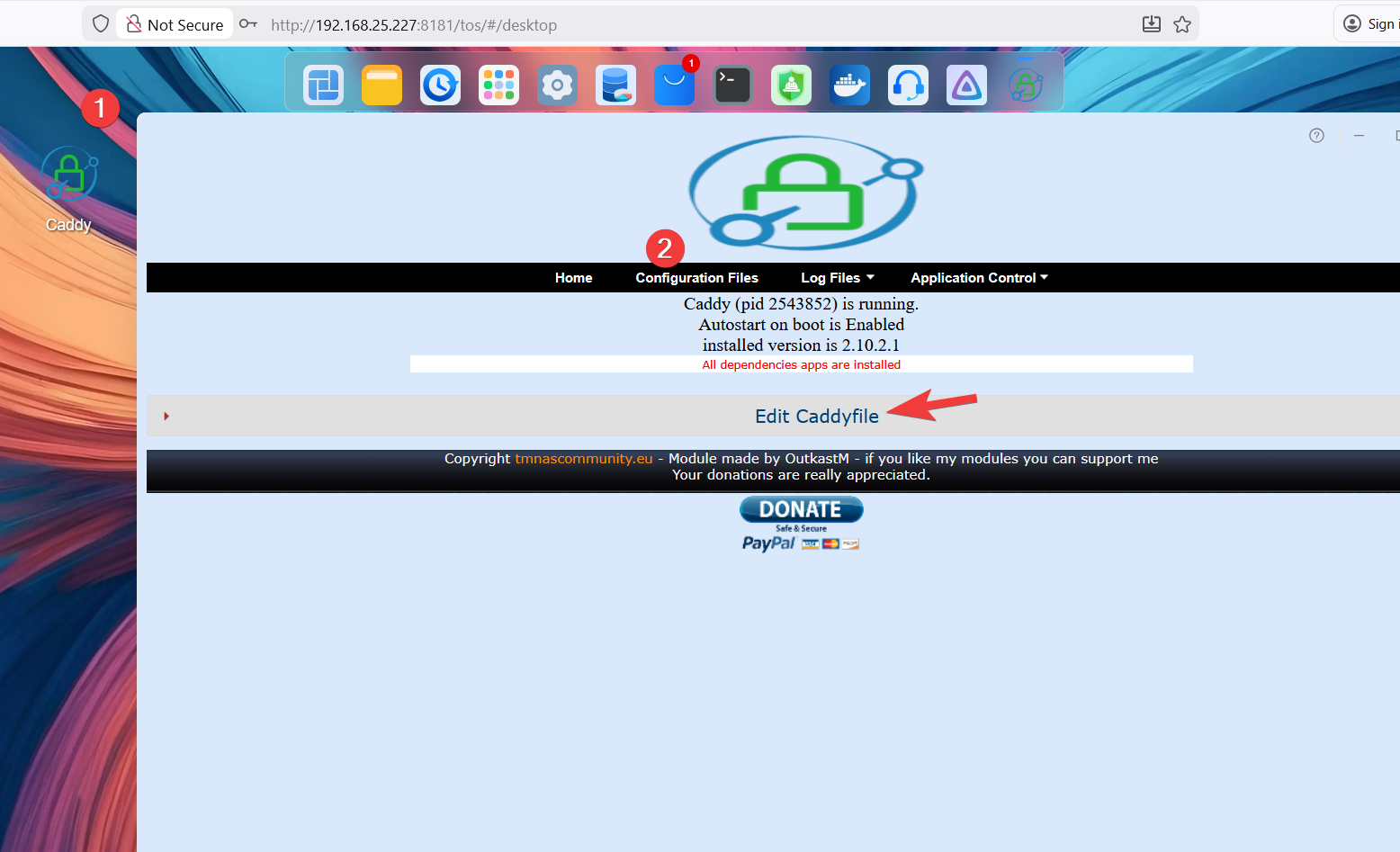
Add your email address and remove the test part
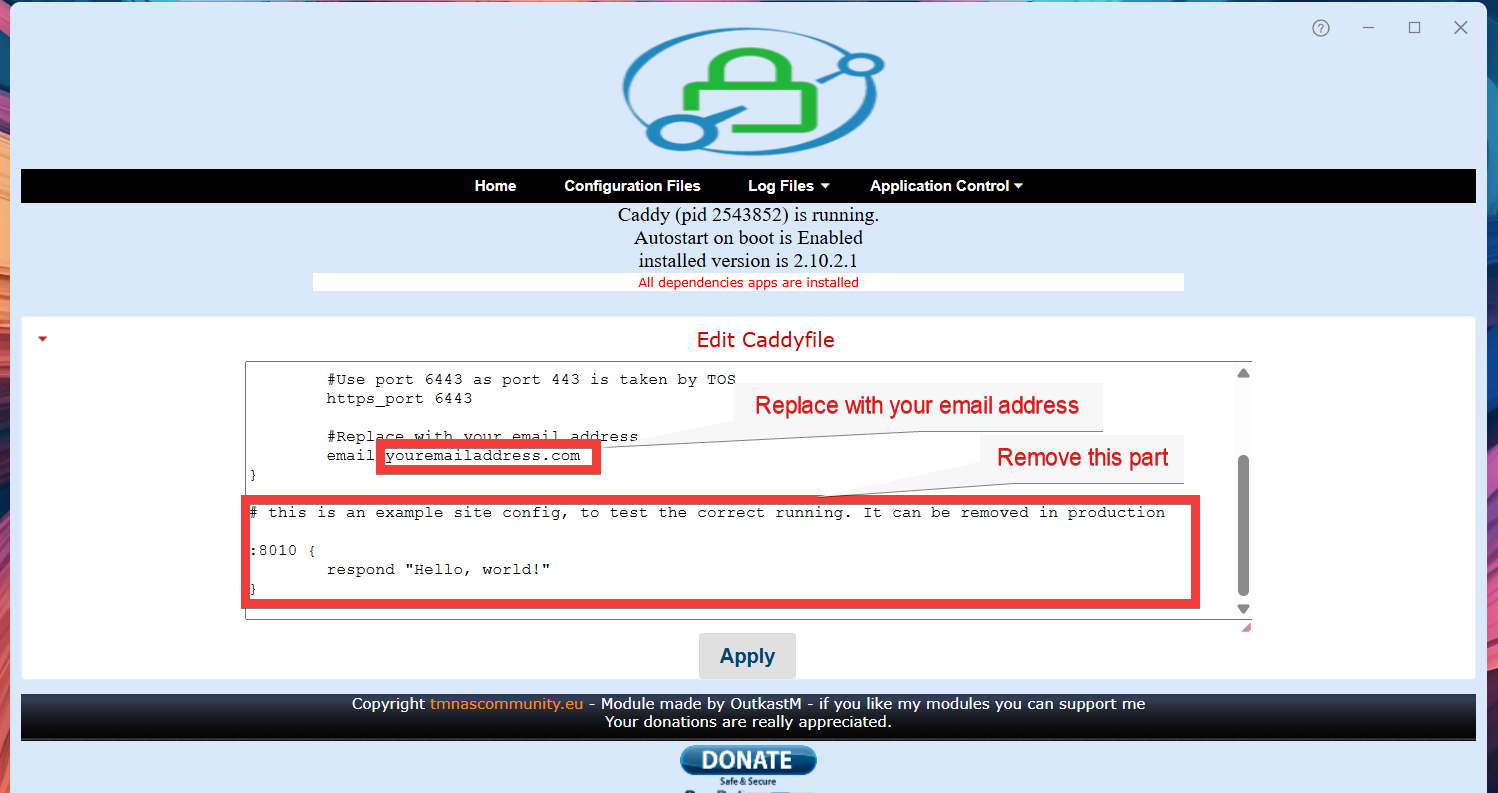
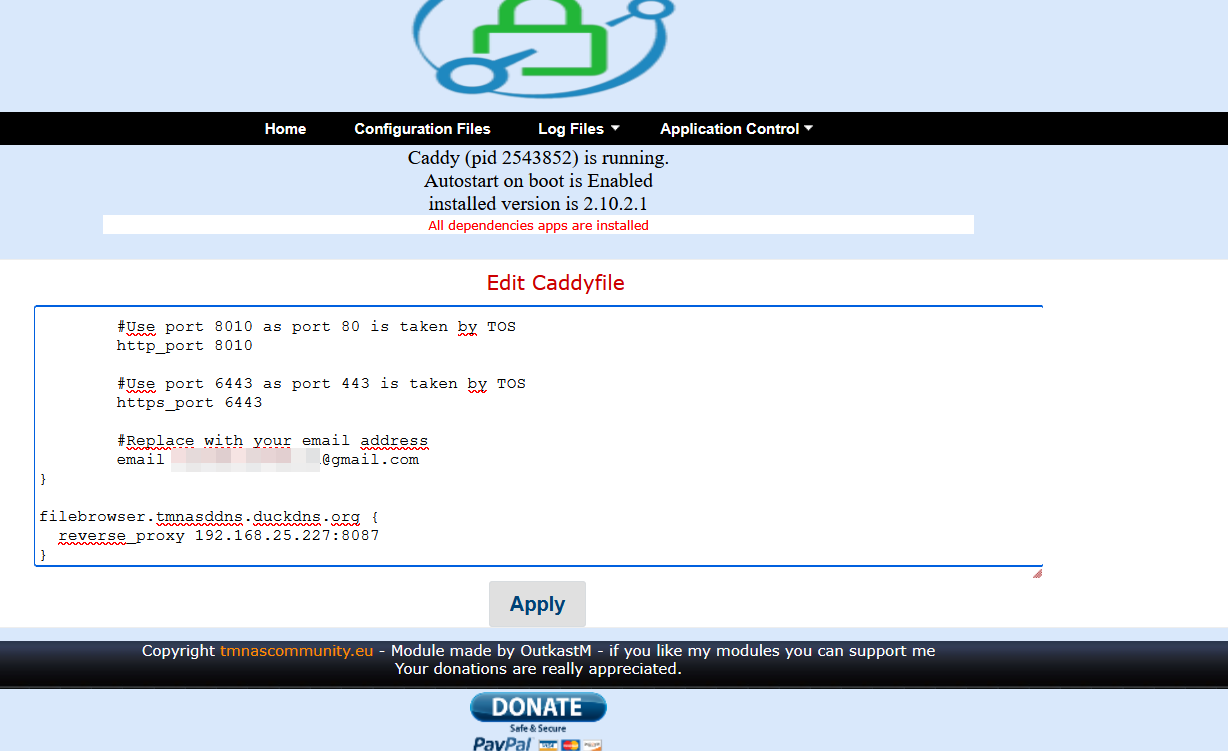
Add the section below in the file and press on Apply. Caddy will restart
filebrowser.tmnasddns.duckdns.org {
  reverse_proxy 192.168.25.227:8087
}
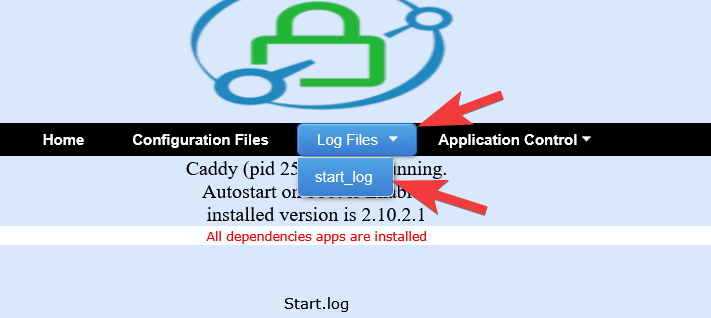
You can now check the log file to see if the Let's encrypt certificates were generated correctly
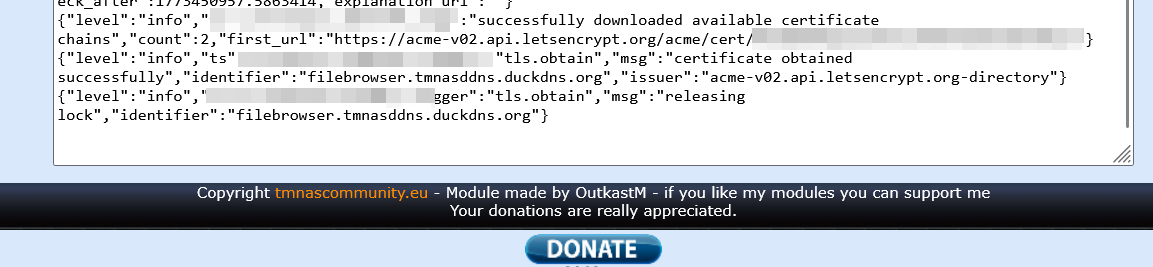
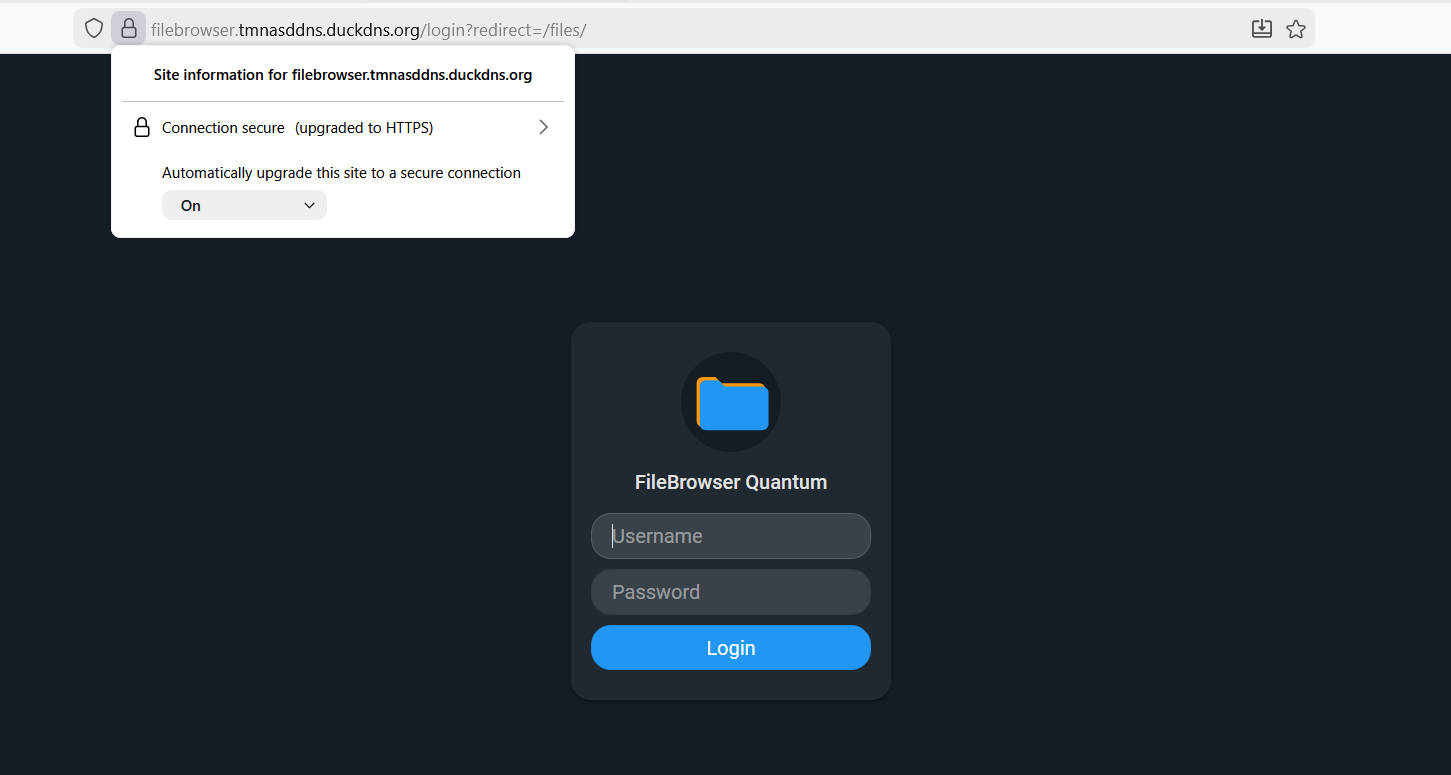
You can now access filebrowser from external ip using https://filebrowser.tmnasddns.duckdns.org
You can add more section as above for different services, as example Home Assistent on Nextcloud