Some apps will run as specific application user, in order to have access only to the required folders and not to the complete storage.
In every app description, you will see the application user under which the application is running.

In this guide i will show you how to assign the required permission for an application users. This way, the app that run as a specific application user can access the required folder.
We'll use as example the application Nextcloud_okm and we want to create a folder where to store applucations data on /Volume1/NextcloudData
Let's now create the shared folder NextcloudData under Volume1
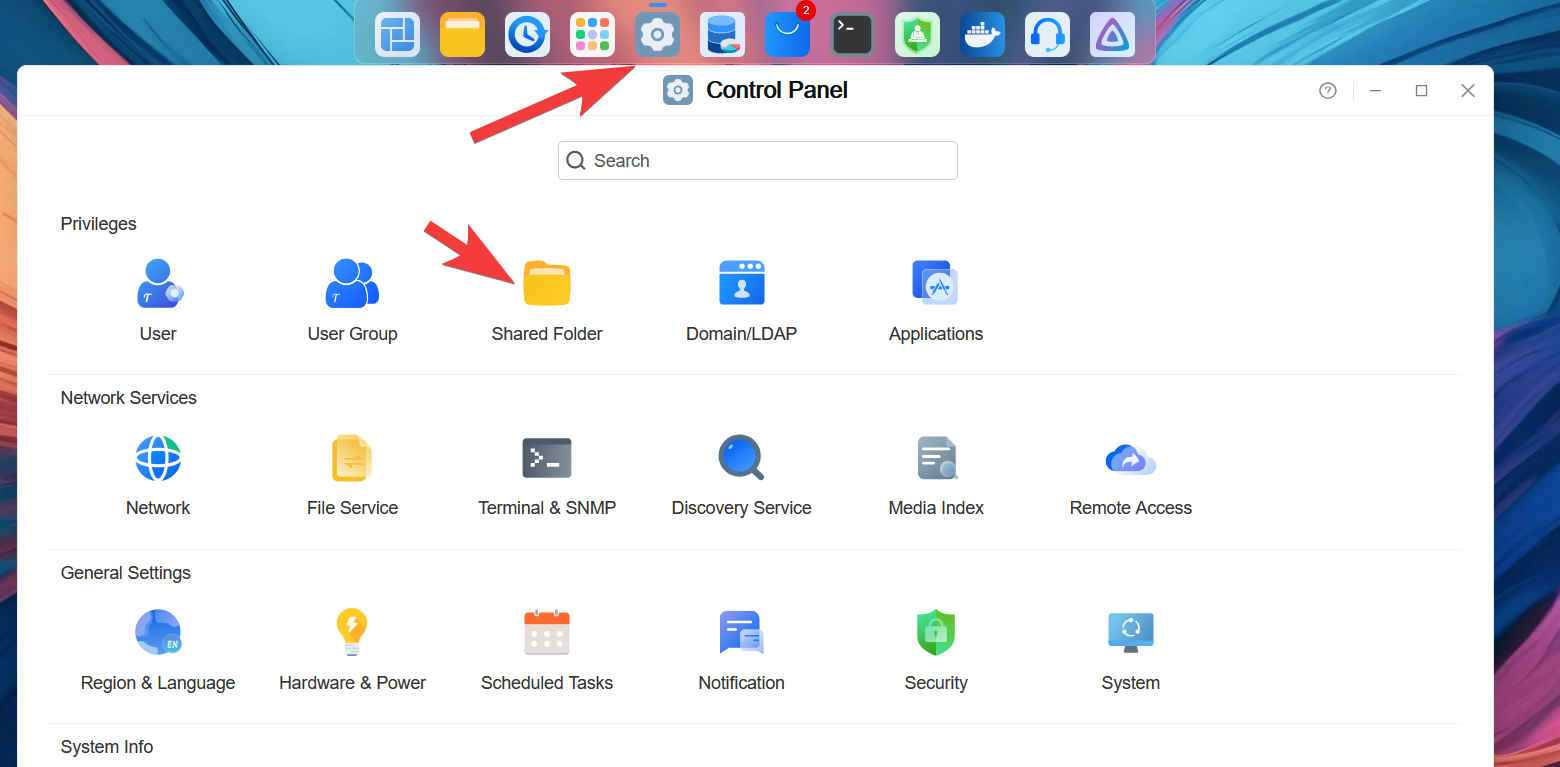
Open Control panel and click on Share
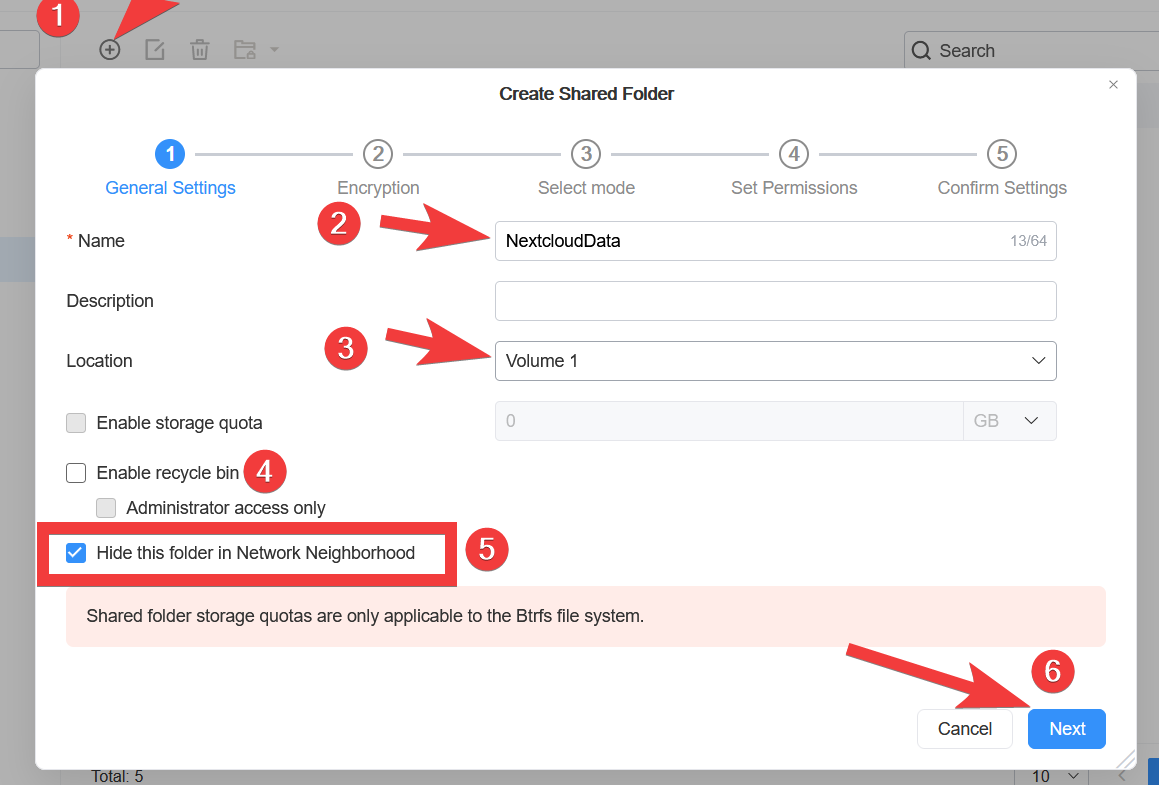
Press on + icon, name the folder NextcloudData, uncheck Enable recycle bin, check the option to hide the folder in Network Neighborhood (is not required to access this folder for Nextcloud via network share) and press on Next
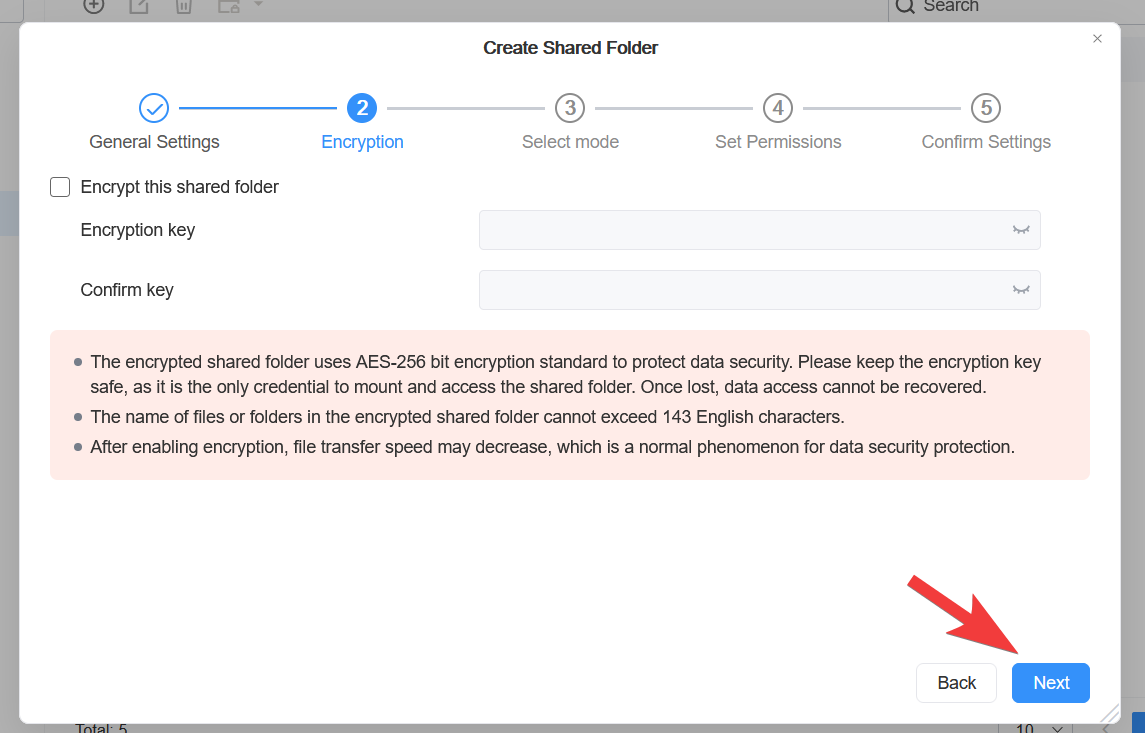
You can now select additional option , as example to encrypt the folder. For nextcloud leave this unchecked and click on Next
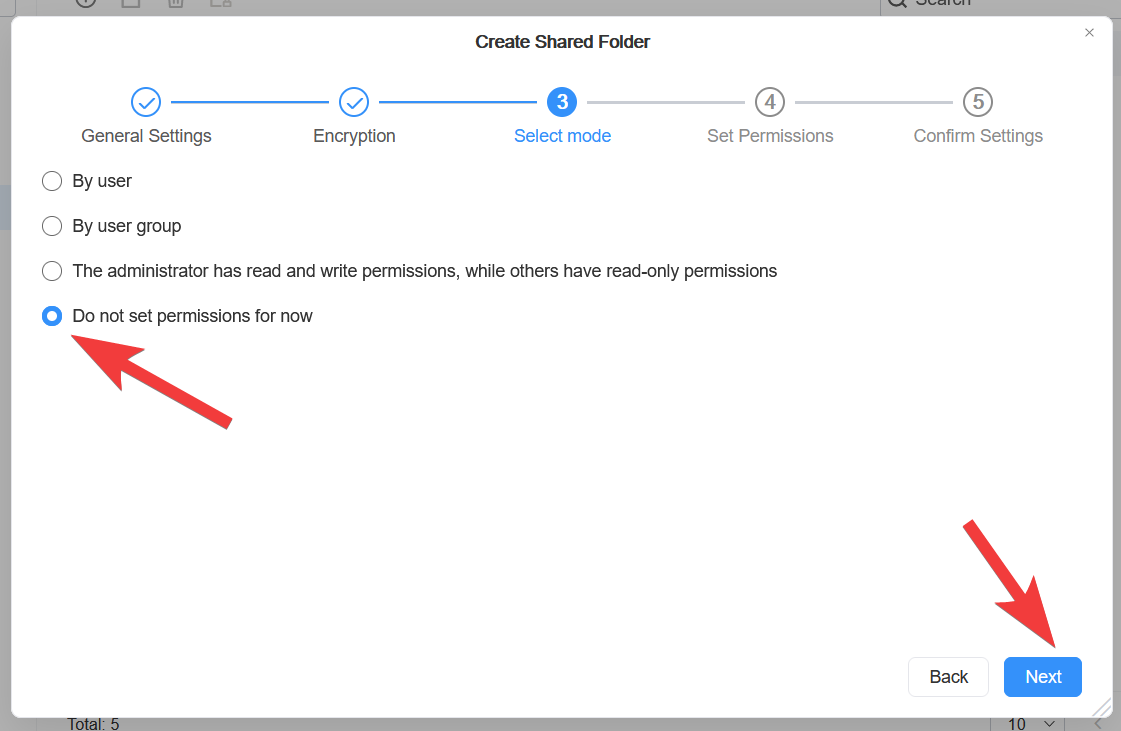
We will not set any permission for this folder now as it will be used only by application user, we just want to create the folder. Select the option and click on Next
You can now press on Confirm
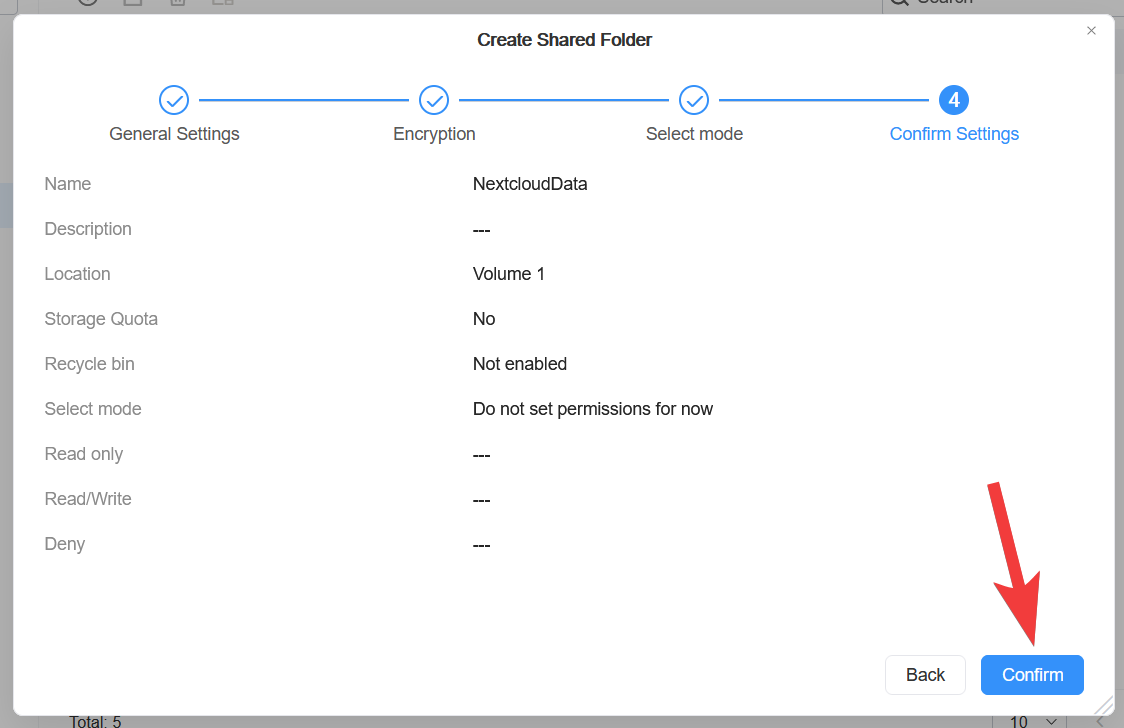
Now that the folder was created, let's assign the read/write permission to it for our application user nextcloud
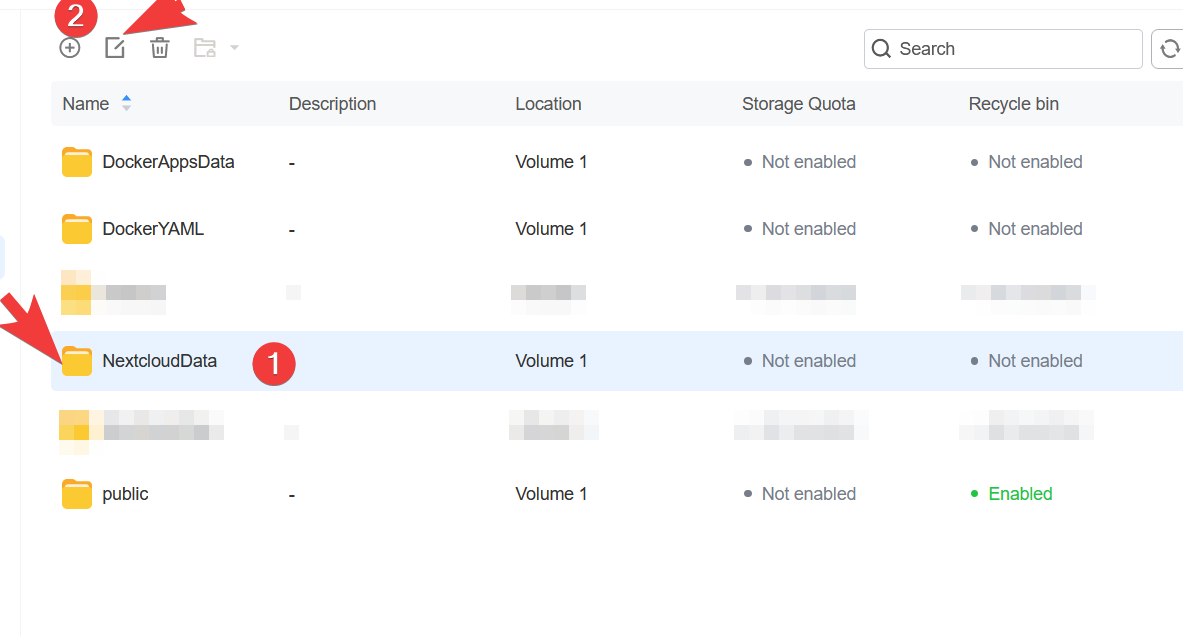
Go to the newly created folder, click on it then on the Edit icon above
Go to TAB Permissions then Application User, and for user nextcloud check the box on the Read/Write column. Click on Apply
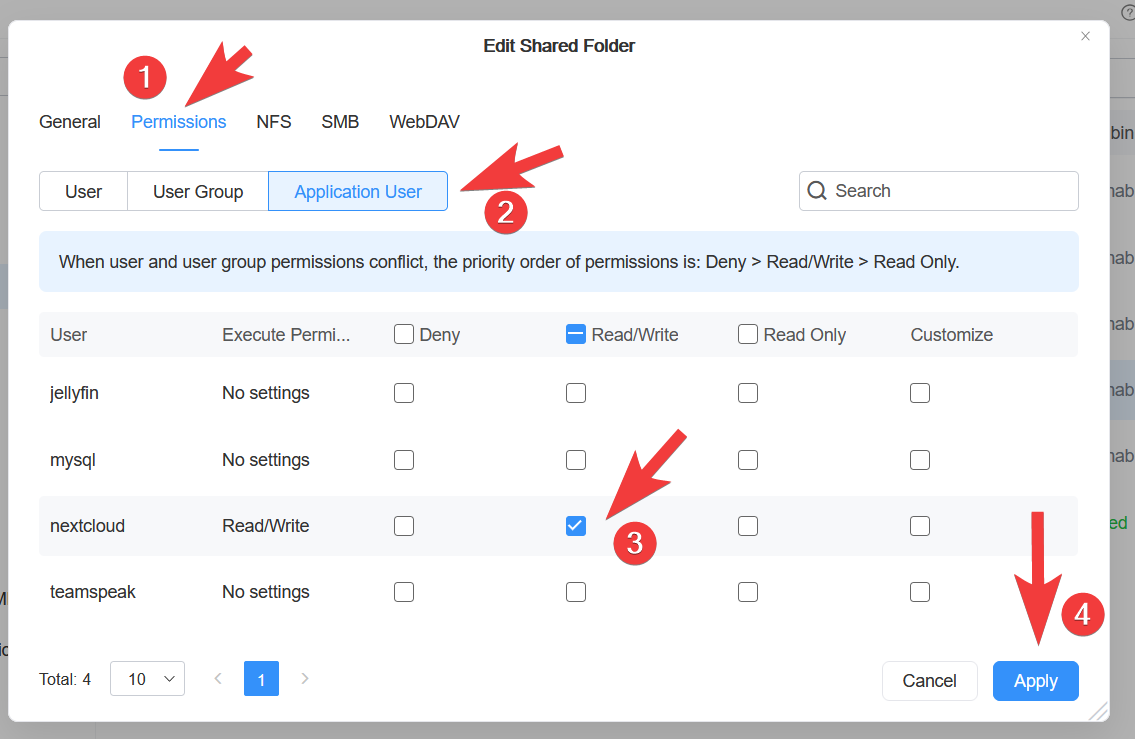
Now the permission is configured and Nextcloud_okm app which is running as application user nextcloud have read/write access to the folder /Volume1/NextcloudData
In case that you follow all steps and your app still does not have access to the required folder, try to remove the permission, apply, and then assign again the permission to Application user.